


Rear Vision Camera (RVC)
The vehicle may have a Rear Vision Camera (RVC) system. Read this entire section before using it.
The RVC can assist the driver when backing up by displaying a view of the area behind the vehicle.
WARNING
The RVC system does not display pedestrians, bicyclists, animals, or any other object located outside the camera's field of view, below the bumper, or under the vehicle.
Do not back the vehicle using only the RVC screen or by using the screen during longer, higher speed backing maneuvers, or where there could be cross-traffic. Perceived distances may be different from actual distances.
Failure to use proper care before backing may result in injury, death, or vehicle damage. Always check before backing by checking behind and around the vehicle.
An image appears on the radio screen with the message Check Surroundings for Safety when the vehicle is shifted into R (Reverse). The radio screen goes to the previous screen after approximately 10 seconds once the vehicle is shifted out of R (Reverse).
To cancel the delay, do one of the following:
○ Press a hard key on the navigation system.
○ Shift into P (Park).
○ Reach a vehicle speed of 8 km/h (5 mph).
Turning the Rear Vision Camera System On or Off
To turn the rear vision camera system on or off:
1. Shift into P (Park).
2. Press the CONFIG button.
3. Select Display.
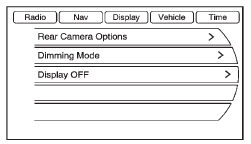
4. Select Rear Camera Options.
5. Select Camera. When a check mark appears next to the Camera option, then the
RVC system is on.
See also:
Power Reclining Seatbacks
To recline a power seatback, if equipped:
• Tilt the top of the control rearward to recline.
• Tilt the top of the control forward to raise. ...
Towing the Vehicle
Notice: To avoid damage, the disabled vehicle should be towed with all four wheels
off the ground. Care must be taken with vehicles that have low ground clearance
and/or special equipment. Always ...
Shifting In or Out of Four-Wheel Drive Low
Notice: Shifting the transfer case into Four-Wheel-Drive Low while moving at speeds faster than 5 km/h (3 mph) may cause premature wear to the transfer case, and may cause the gears to grind. To avoid ...